HOW TO BLUR AND UNBLUR 360 IMAGES
Blurring and Unblurring 360° Photos
01
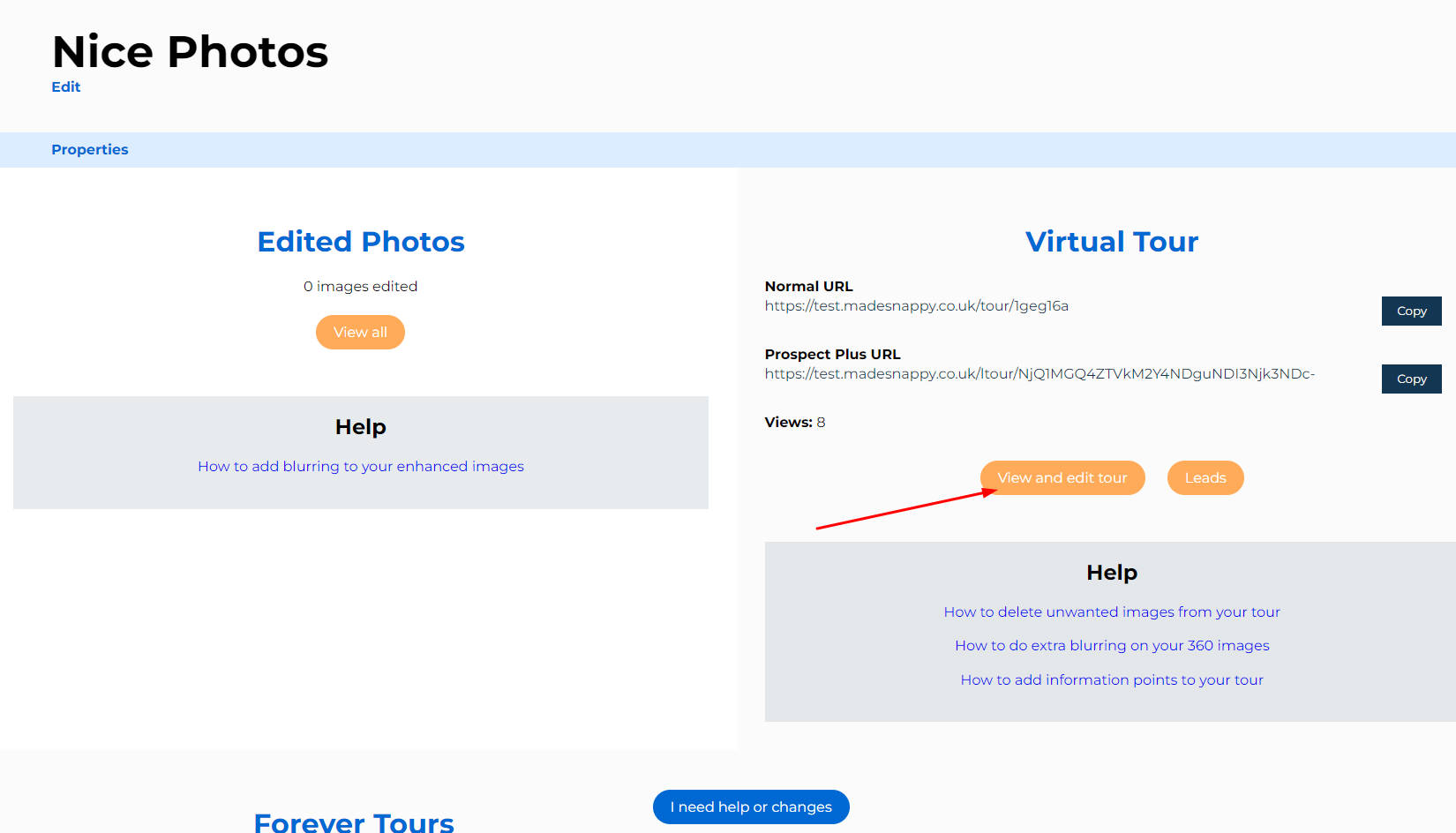
Find your ‘Virtual Tour’
From the completed property page, find and the ‘Virtual Tour’ section, then press on ‘View and edit tour’.
02
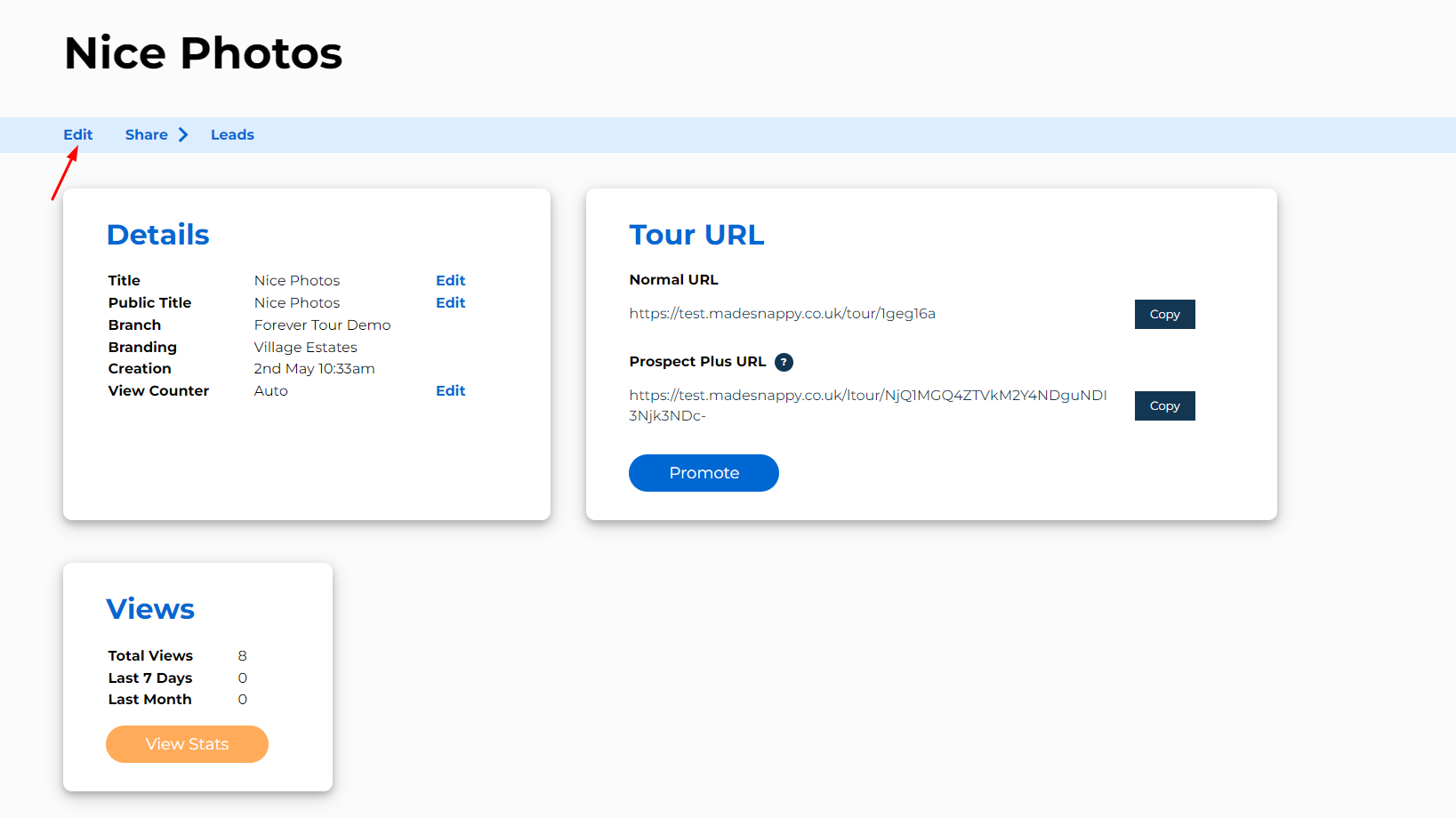
Edit your 360° tour
Press on ‘Edit’ underneath your property title.
03
Open blurring mode
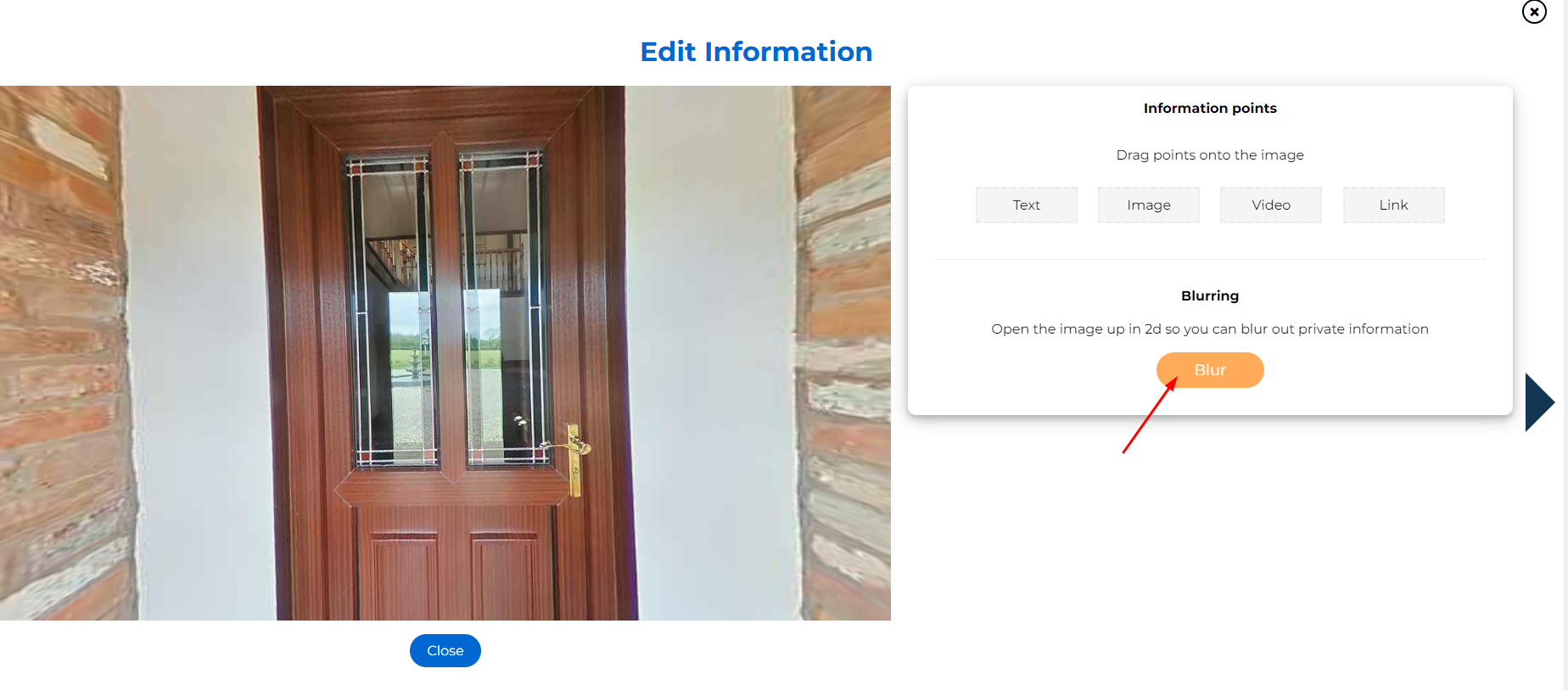
Click on the image you want blurred, then press the orange ‘Blur’ button.
04
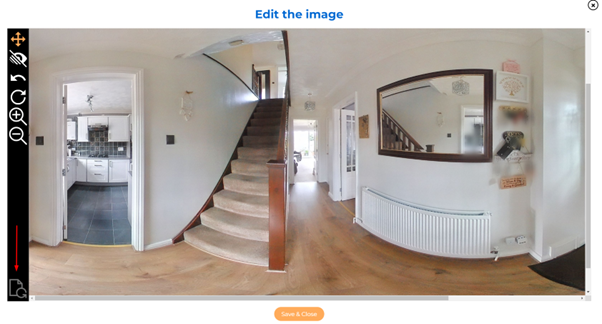
Blur your 360 image
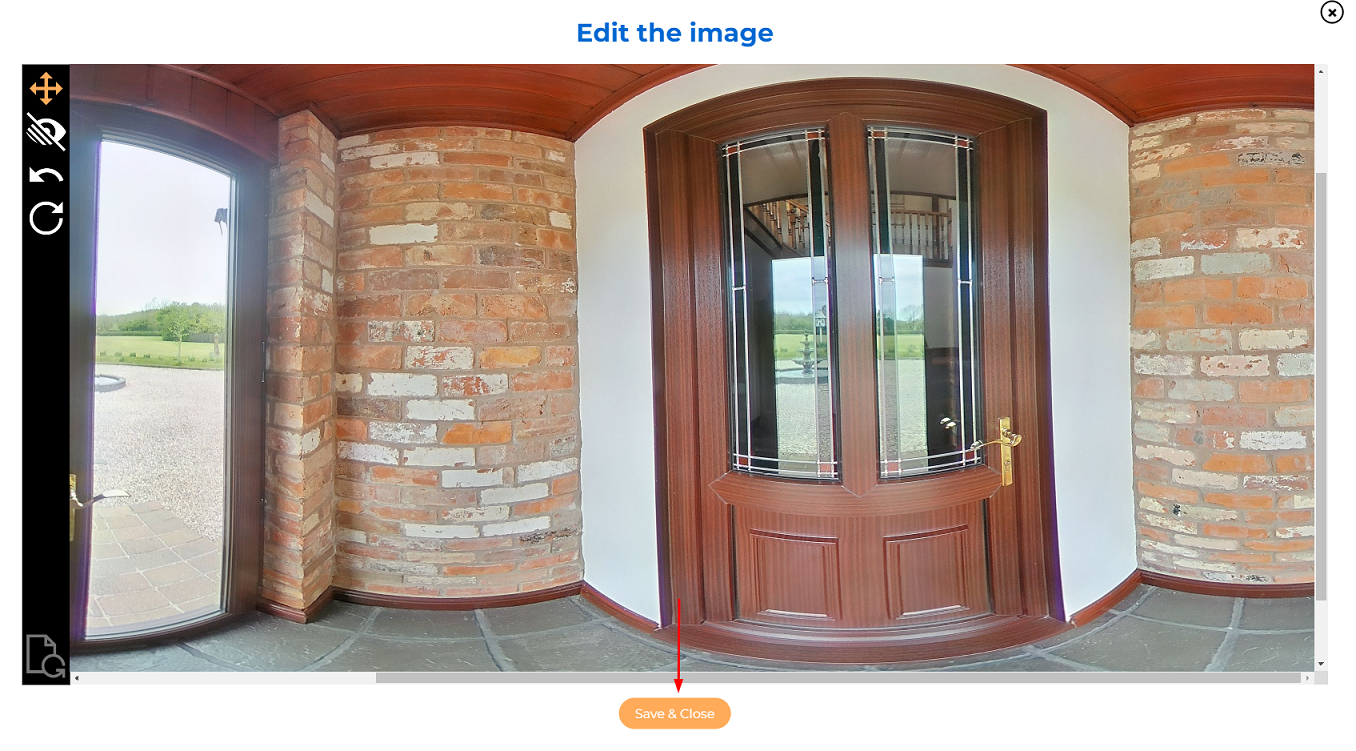
Find the part that needs blurring and use the blurring tool. Once complete, press ‘Save & Close’ to save the changes to your tour.
05
Unblur your image (Optional)
If you would like to remove all blurring from an image, you can do so by pressing this button. Once complete, press ‘Save & Close’ to save the changes to your tour.